In this guide
Prepare your sheet
The easiest start is our template, with its columns ready and a sheet of instructions. Your own sheet works too, as long as the column names match (in English or Polish). Column order doesn't matter.
One row is one person. People with the same invitation name share one invitation. Only the name column is required:
- Invitation: for example "The Kowalski family"; empty for someone invited on their own,
- Name: empty for a plus one, who gives their name when replying,
- Who: adult, child or plus one; empty means an adult,
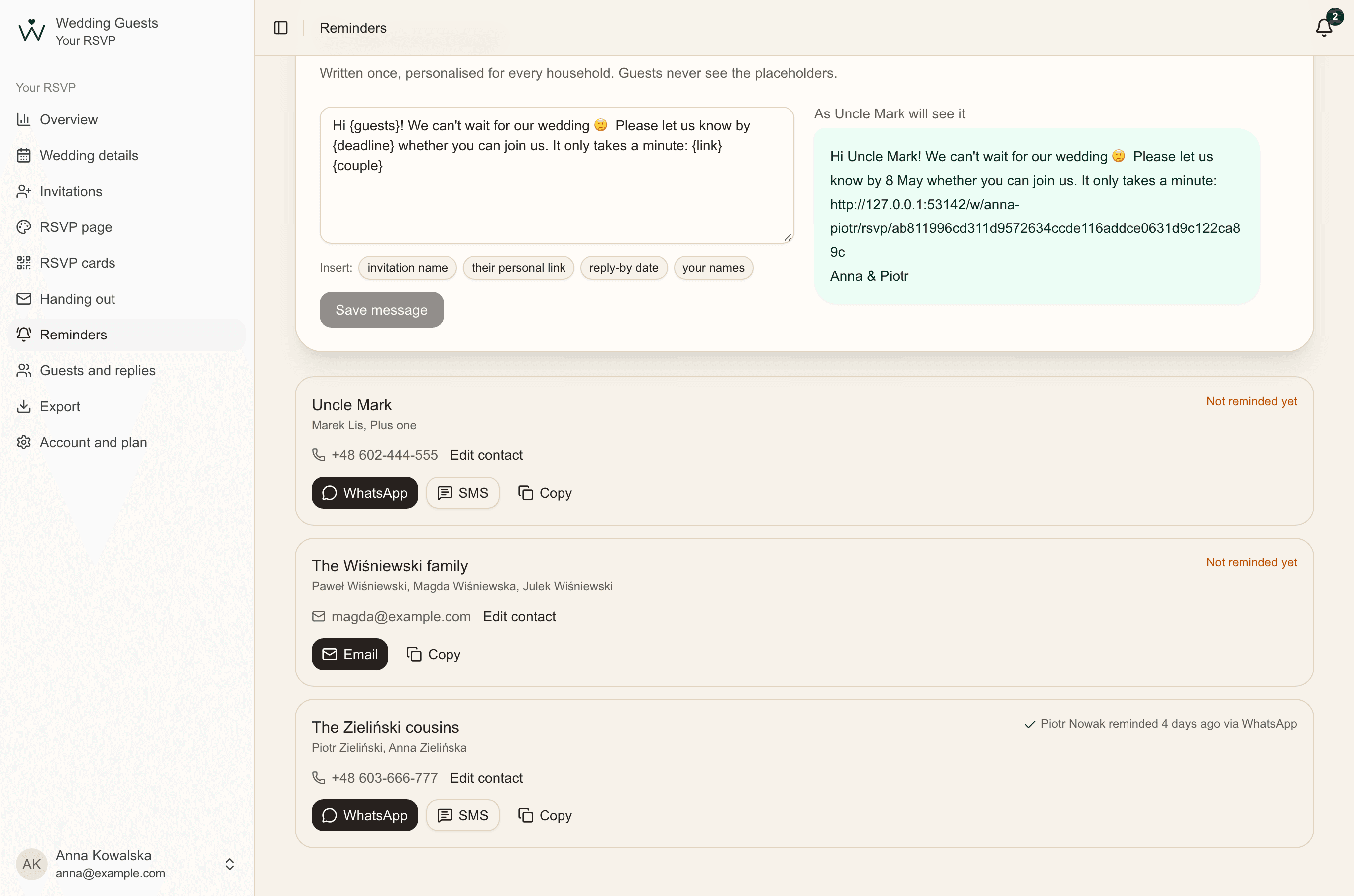
- Phone and Email: for reminders; numbers without a country code are read as Polish,
- Accommodation: "yes" if you offer this household a room,
- Notes: seen only by you,
- one column for each extra event, for example Second-day party: write "no" for invitations it doesn't include.
Upload the file and check the preview
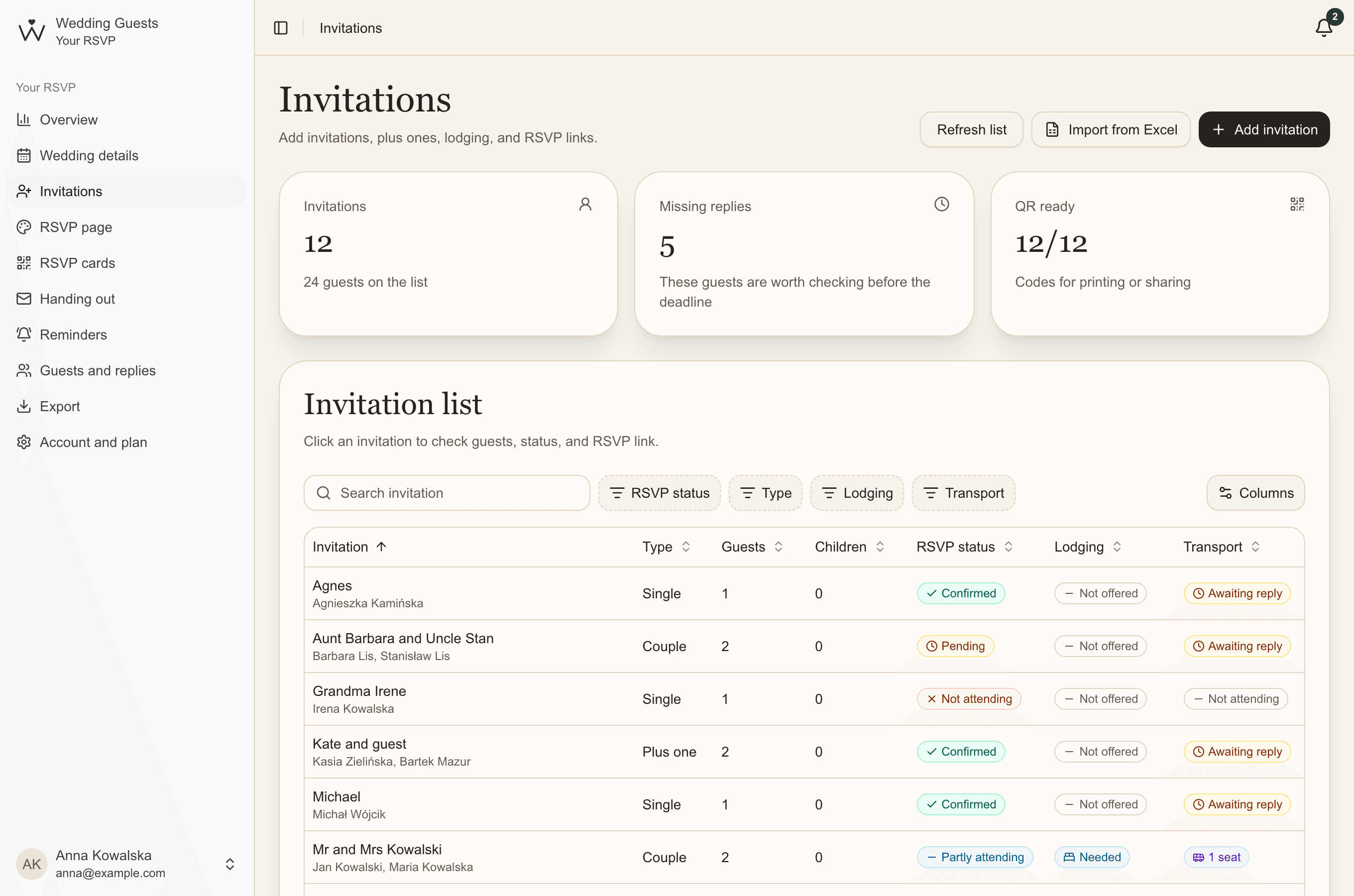
- In Invitations, click Import from Excel.
- Choose an .xlsx or .csv file (up to 2 MB and 1,000 rows).
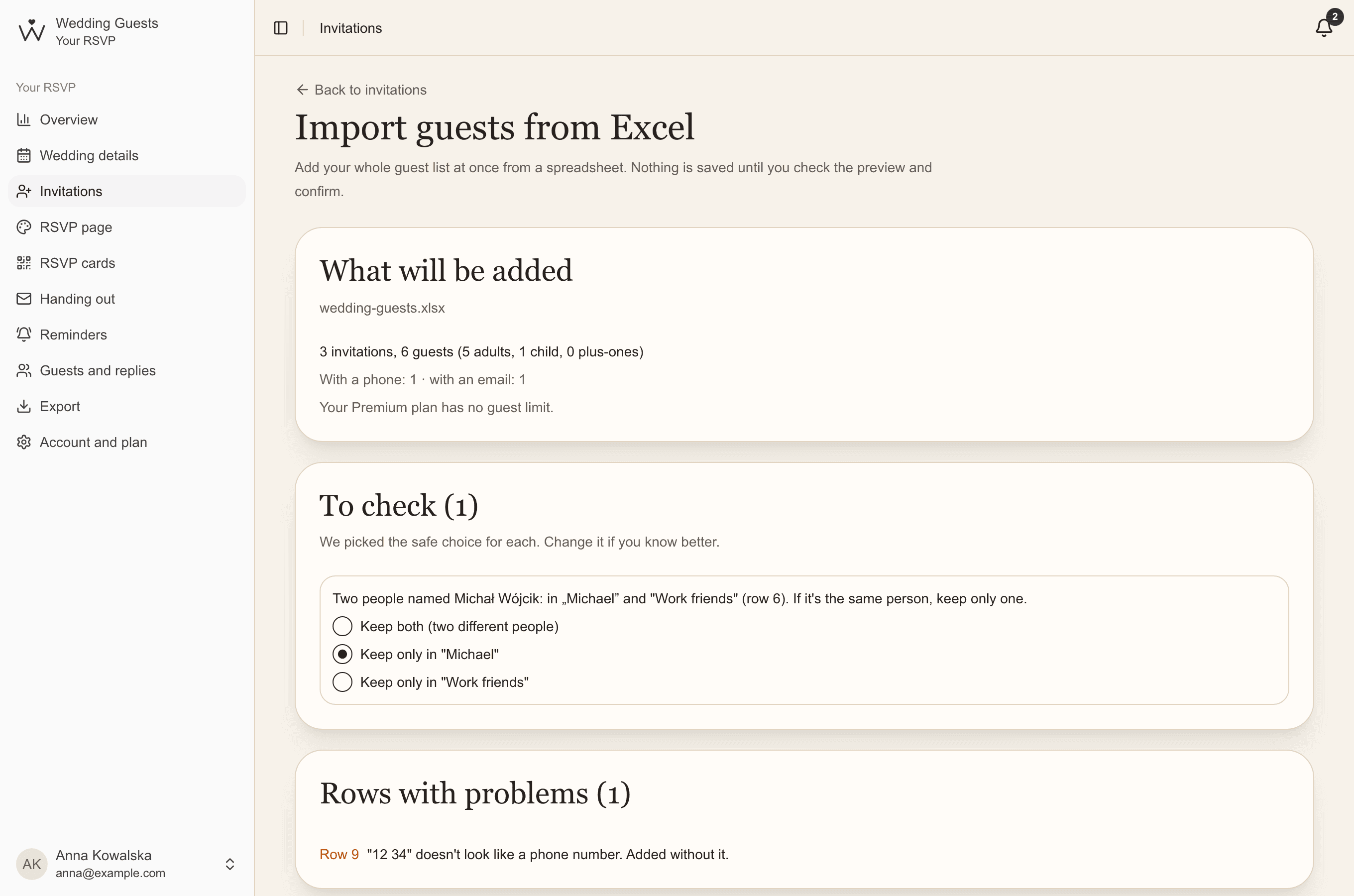
- Read the summary: how many invitations, adults, children and plus ones will be added, and how many contacts for reminders we found.
- Settle the items to check and look through any rows with problems.
- Click Import. Only then do your guests join the list.
Duplicates and rows with problems
When the same person appears on two invitations, we ask what to do: keep both (they're two different people) or just one. Invitations already on your list are skipped, so you can safely upload the same file twice.
Rows with problems are explained in plain words: for example, "12 34" doesn't look like a phone number, so the guest is added without it. If the list doesn't fit your plan, nothing is imported, and the preview says how many guests are over.
After the import
Every imported invitation has its QR code and private link straight away. Now you can design your RSVP page, print cards or download a pack of codes for your own design. The contacts from your sheet come in handy when it's time for reminders.
Common questions
- Does the import work on the free plan?
- Yes, importing works on every plan. Your plan only decides how many guests fit on the list.
- What if I upload the same file twice?
- Invitations already on your list are skipped, and we tell you how many. Only new ones are added.
- Can I import a list from Google Sheets?
- Yes. Download the sheet as .xlsx or .csv (File, Download) and upload it in Invitations.