In this guide
What belongs on an RSVP page
- your names, the date and a photo, so guests know at once they're in the right place,
- the schedule, with times and addresses for the ceremony, reception and any extra events,
- the reply-by date, clearly, not in small print,
- a form with the names of everyone invited, so nobody has to type them,
- a way to reach you for those who'd rather call.
Style and photo
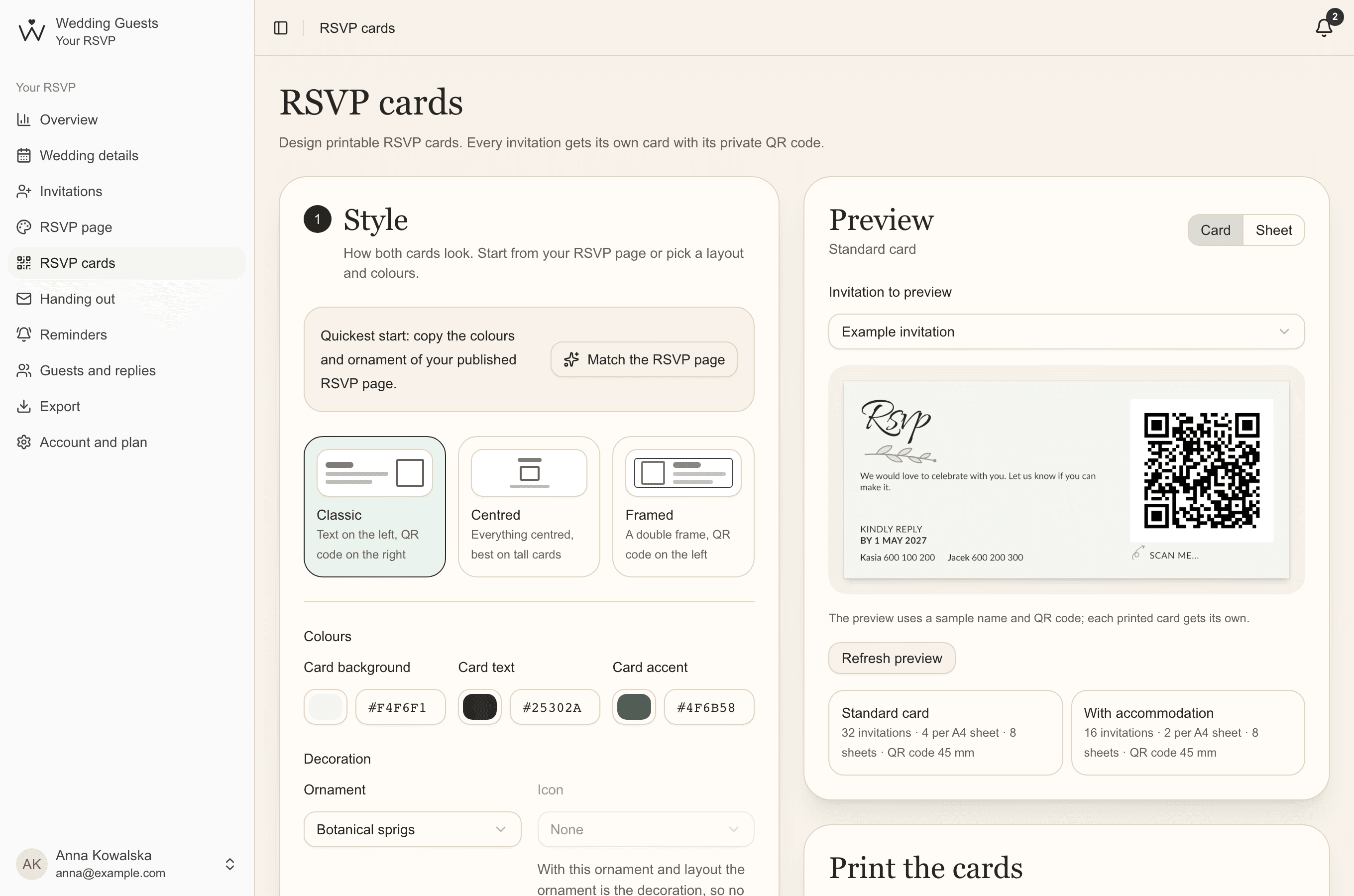
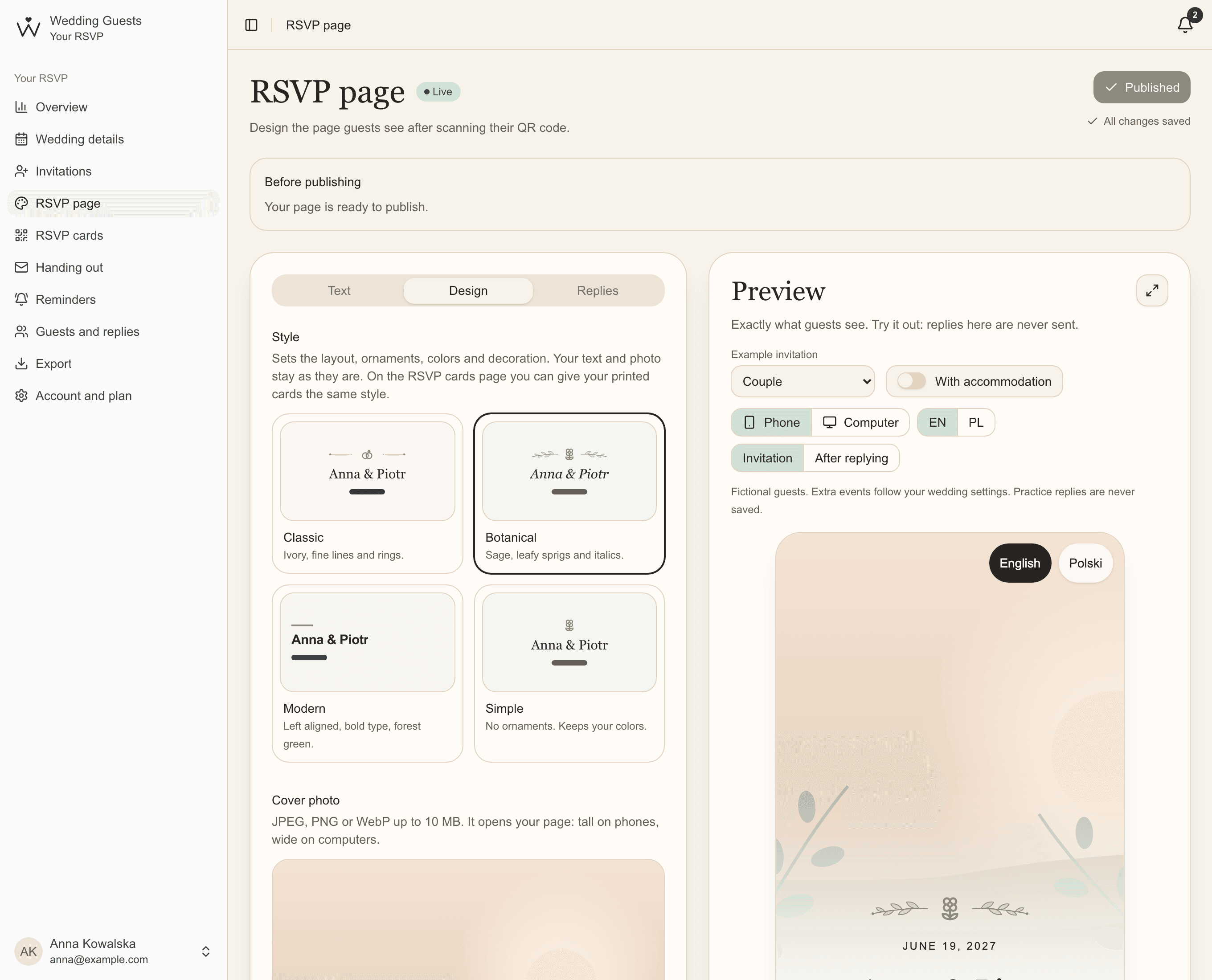
Under Design, choose one of four styles: Classic (ivory, fine lines and rings), Botanical (sage, sprigs and italics), Modern (left-aligned, a strong typeface, deep green) or Simple, with no ornaments. A style sets the layout, ornaments, colours and decoration, while your texts and photo stay as they are. You can give your printed RSVP cards the same style later.
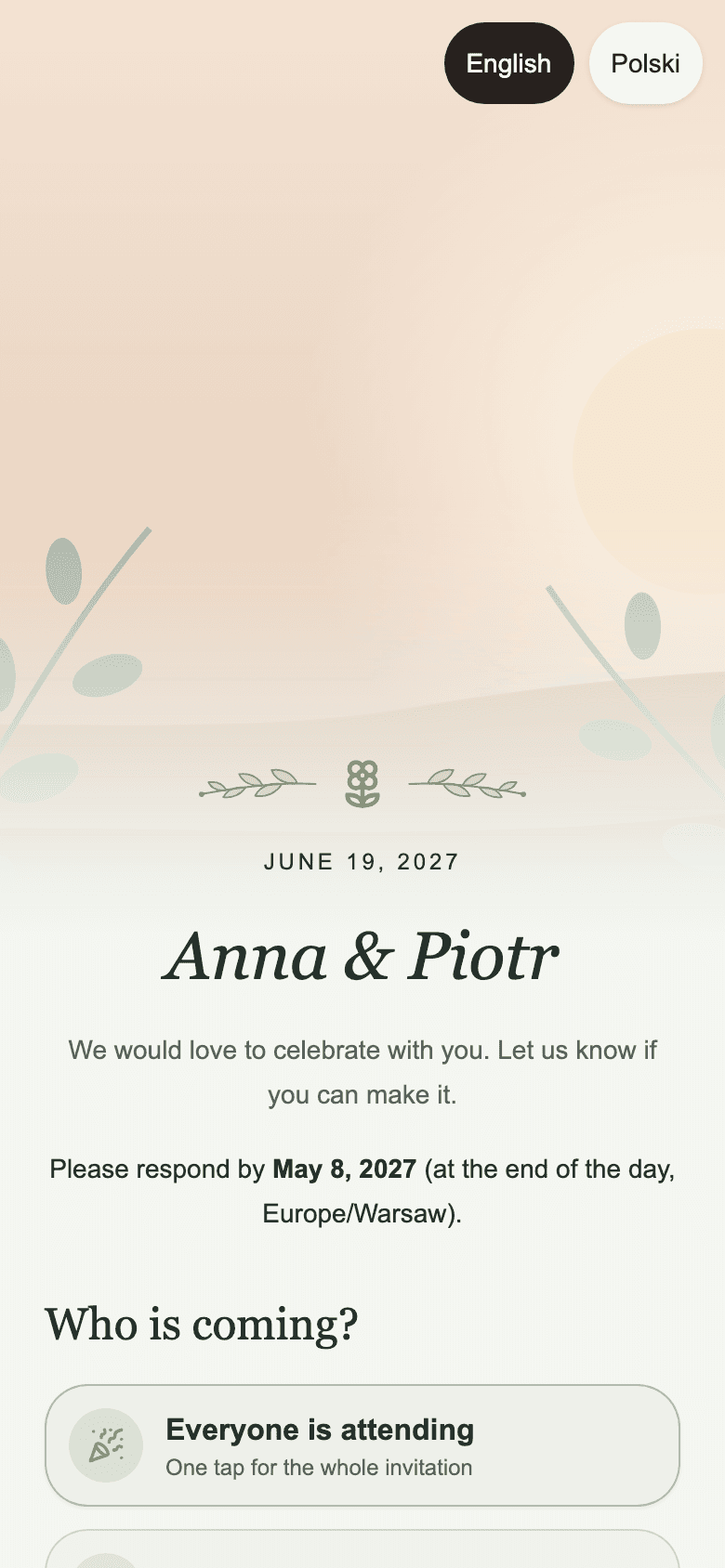
Your cover photo (JPEG, PNG or WebP up to 10 MB) opens the page: tall on phones, wide on computers. In Adjust framing you set separately what shows on a phone and on a computer, so faces never disappear under your names.
Your own colours
PremiumEvery style comes with a matching palette, and there are several ready ones to choose from. If you want the page in exactly your invitation's colours, click Customize colors and set the background, text, button and details. If any text becomes hard to read, the editor tells you straight away.
Texts in two languages
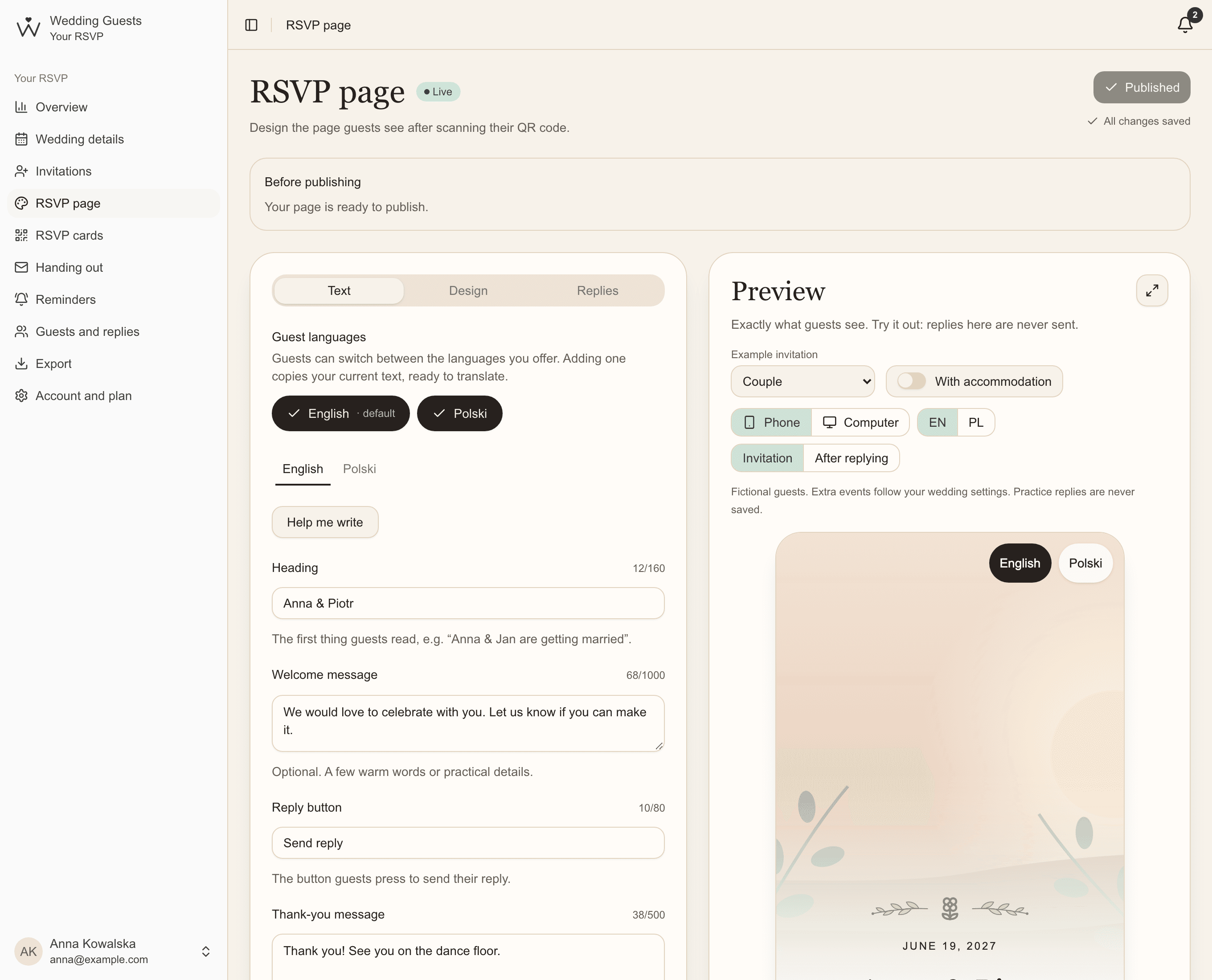
Under Text, choose the languages for your guests: English, Polish or both. Guests from abroad switch language with one tap, and you write your texts once per language.
Not sure how to start? Click Help me write and pick ready wording in an elegant, warm or relaxed tone. You choose which fields to replace, and your own texts stay until you confirm.
Your schedule and contacts
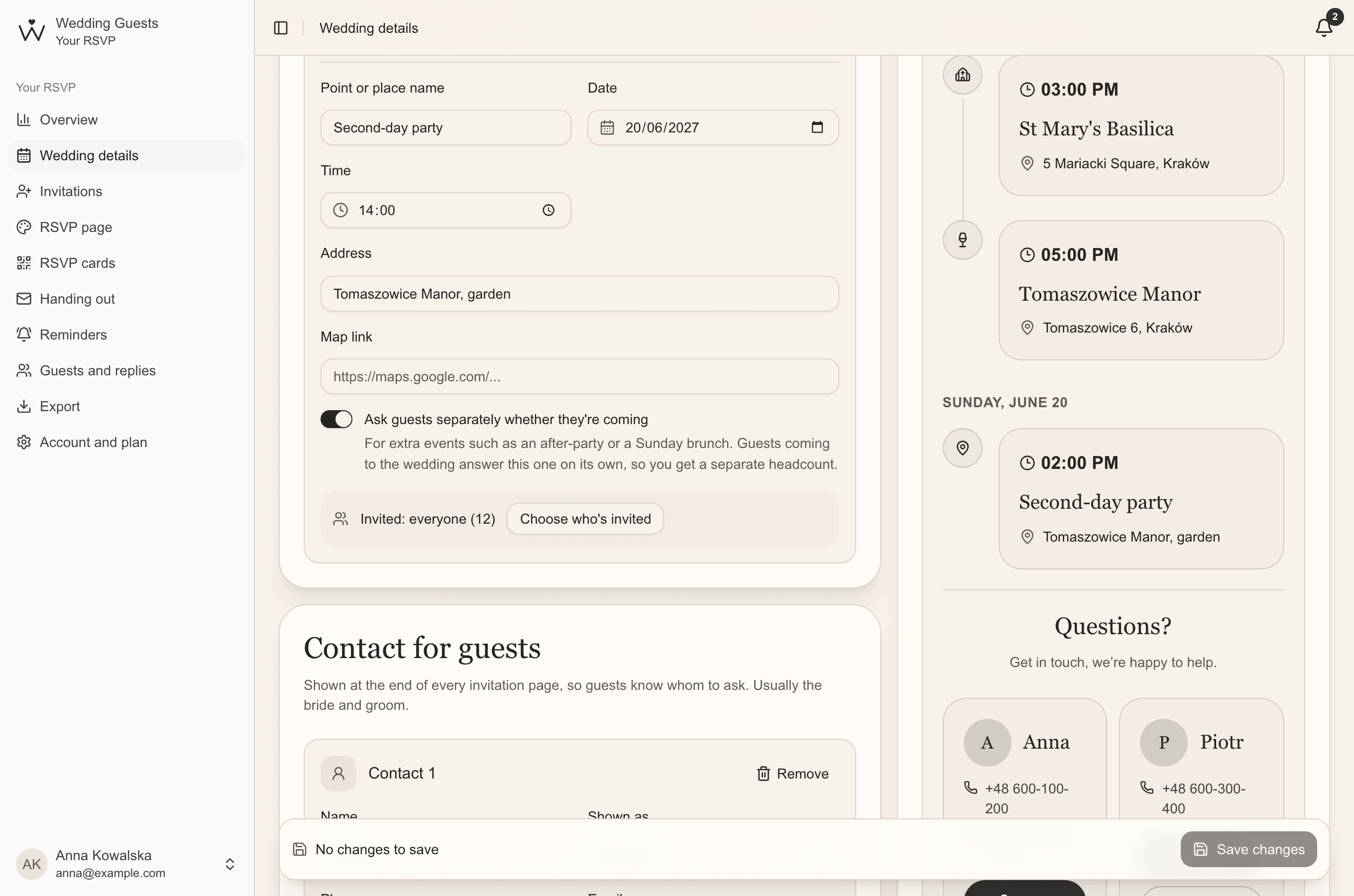
The schedule and contacts come from Wedding details. If the celebration lasts longer, with a second-day party for example, the page groups events by day. Guests call or text you with one tap, straight from the page.
What your guests see
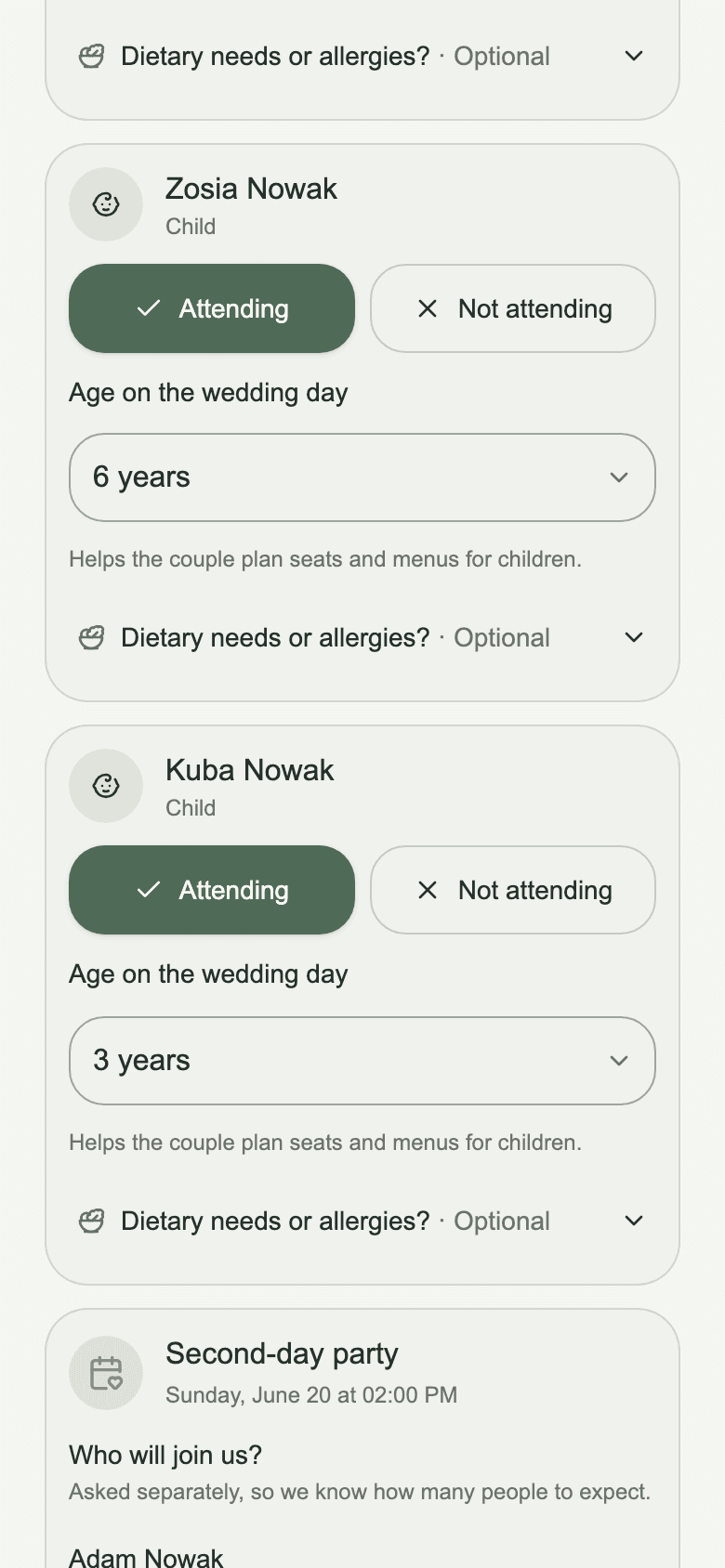
Guests see the names of everyone on their invitation and answer for each person, or for everyone with one tap. A plus one gives their name, children are asked their age on the wedding day, and everyone coming can note a diet (vegetarian, vegan, gluten-free, lactose-free) and a short allergy note.
Invitations with accommodation are asked whether they need it, transport asks how many seats, and extra events ask which of those coming will join. Before a guest sends allergy details, or a gluten-free or lactose-free diet, the form asks for their consent, because it's health information.
Preview and publish
The preview shows exactly what guests will see, on a phone and a computer, in every language. Pick a sample invitation, a couple or a family with accommodation for example, and try the form: sample replies are never sent anywhere. The After replying view shows what guests see once they've answered.
Before publishing, we check nothing is missing: texts in every guest language, a ceremony or reception place, readable colours. Then click Publish. Later changes reach guests only when you publish again.
Common questions
- Do guests need an account to reply?
- No. Guests open their page from the QR code or link and reply straight away, with no account and no app.
- Can a guest change their reply?
- Once sent, only the couple can change a reply: correct it in the invitation's details, or reopen the invitation so the guest can answer again.
- Can we change the page after sending invitations?
- Yes. A QR code opens the invitation, not a particular design, so every guest sees your published changes, including those with printed codes.