In this guide
Wedding details
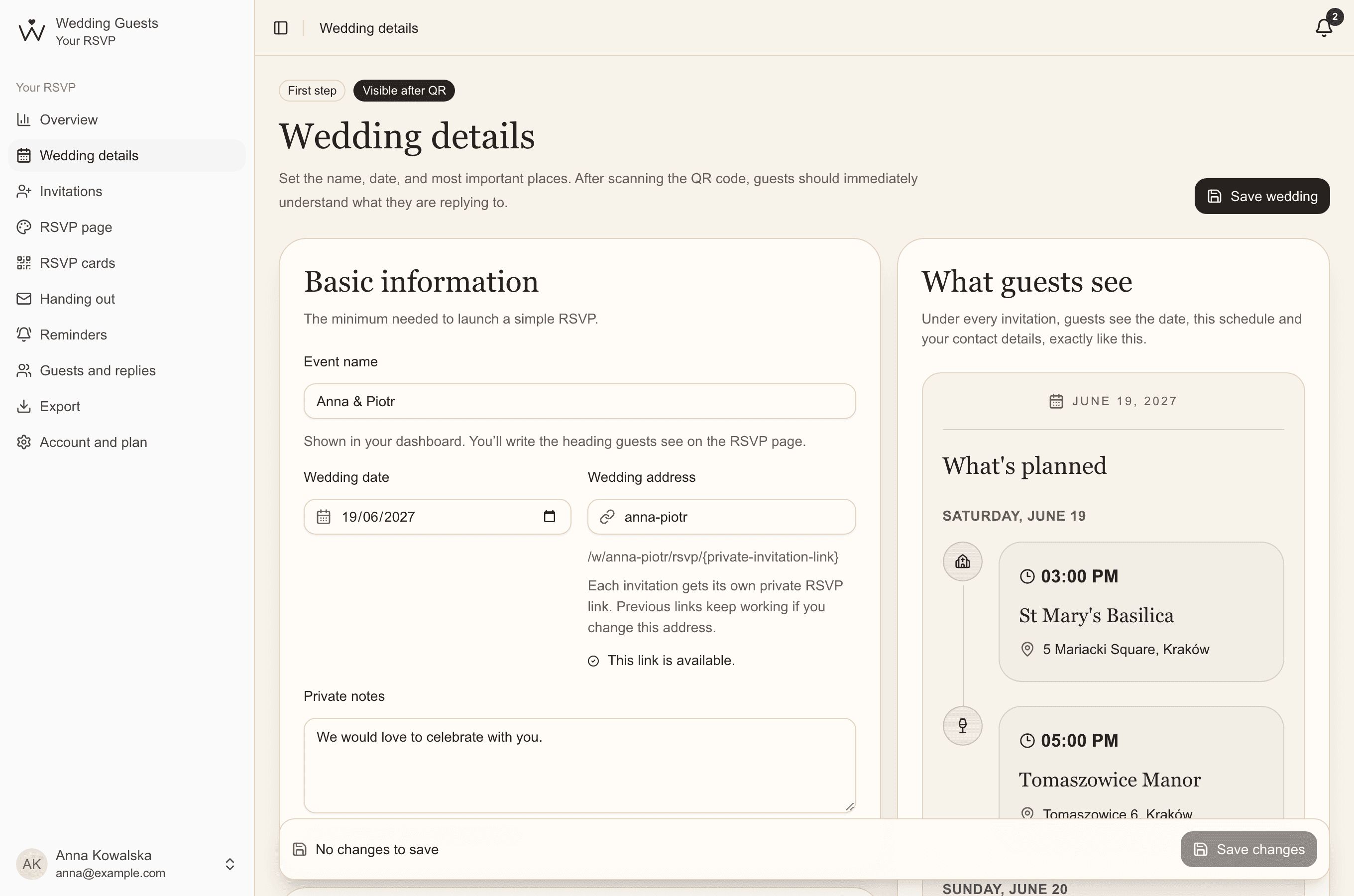
Start with Wedding details. What you enter here is what guests see under every invitation: the date, the schedule and how to reach you.
- Enter the event's name and your wedding date.
- Check the page address, for example anna-piotr. Every invitation gets its own private link under it.
- Add your places: the ceremony, the reception and perhaps a second-day party, with times and addresses.
- Under Contact for guests, say who guests can call with questions.
Invitations
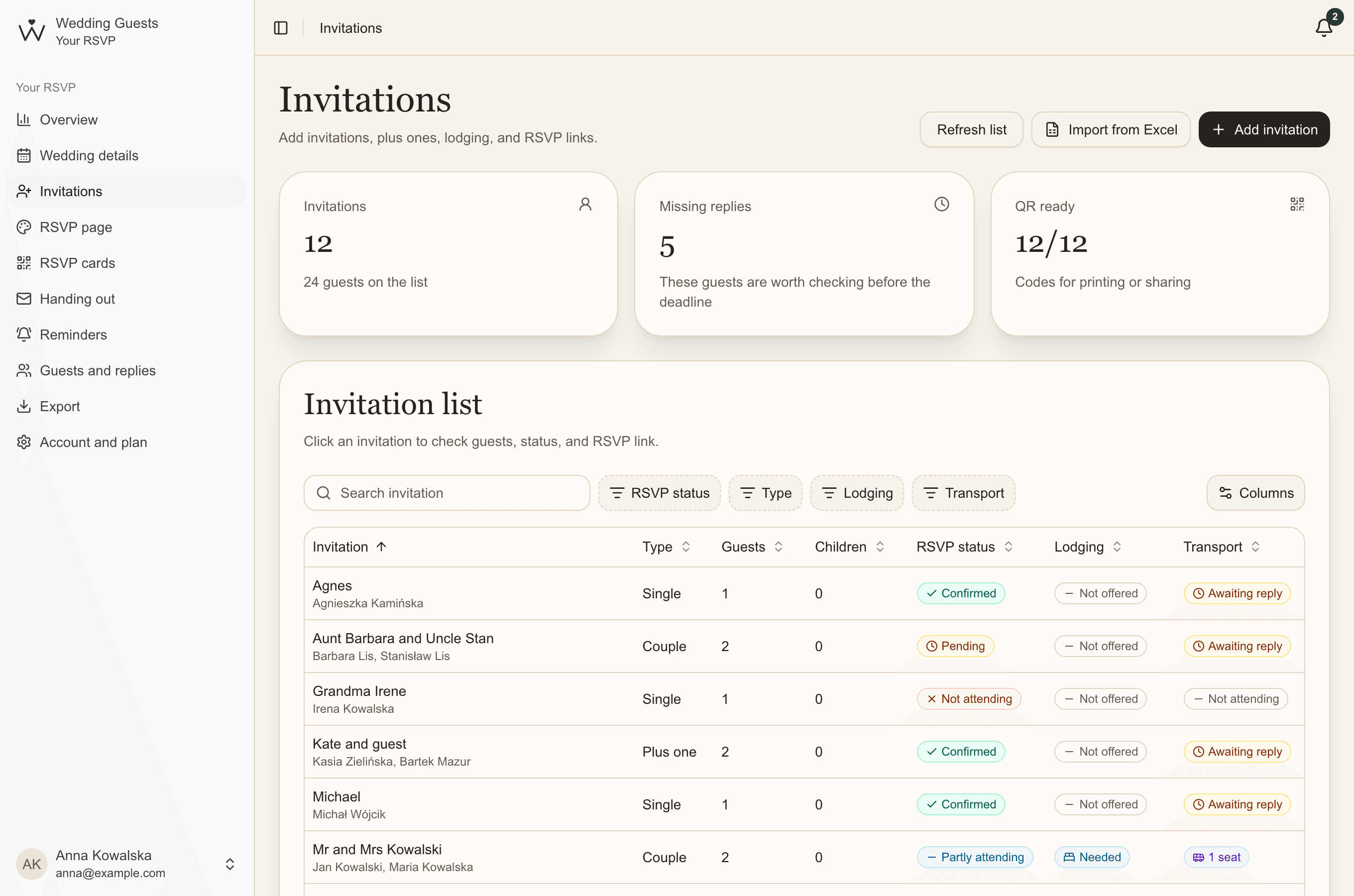
Next, your guest list. Think in invitations, not individual people: a single guest, a couple, a guest with a plus one or a family with children. Each invitation gets its QR code and link straight away.
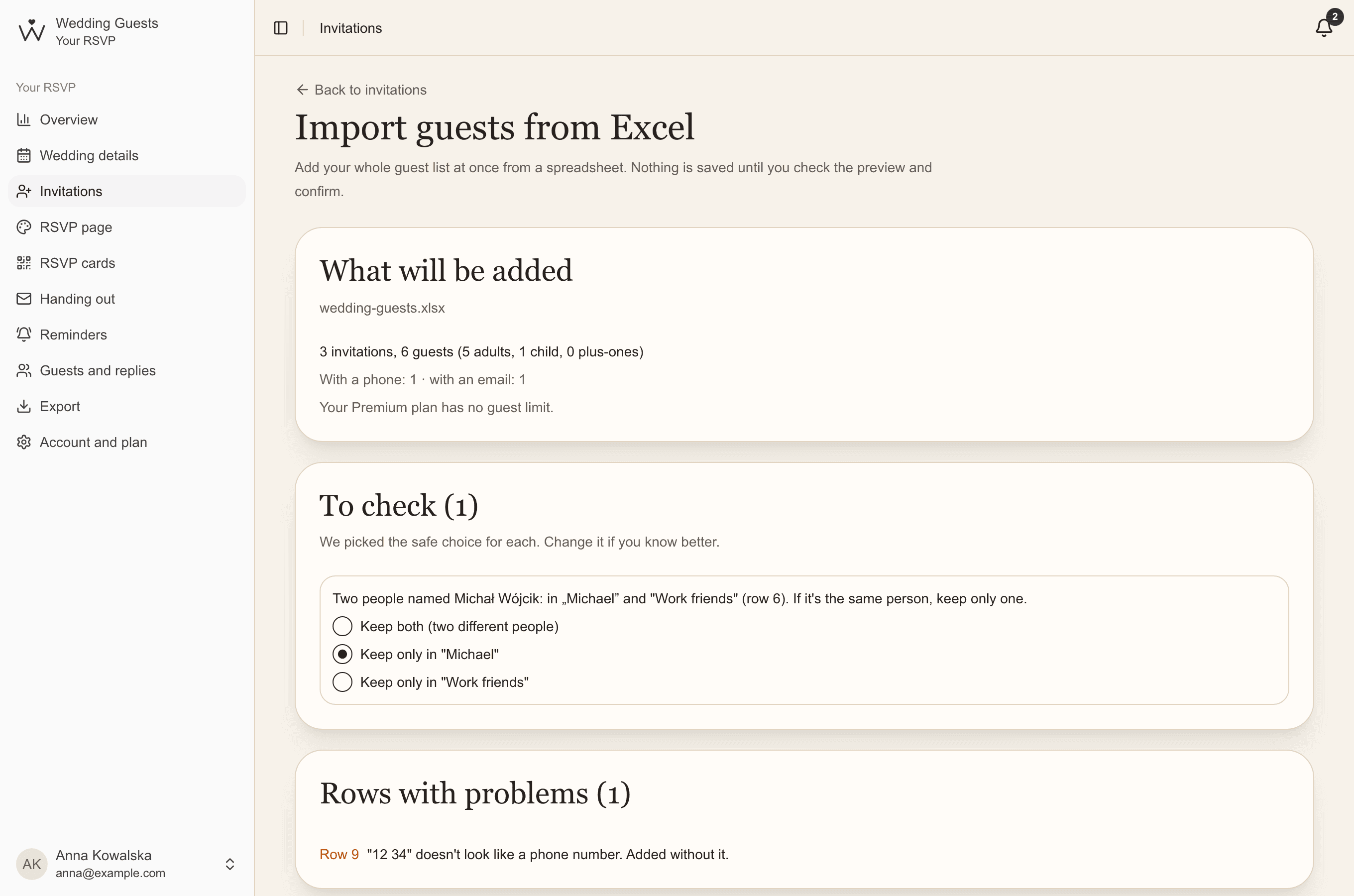
Already have a list in Excel? Upload the whole thing. Nothing is saved until you've checked the preview.
Your RSVP page
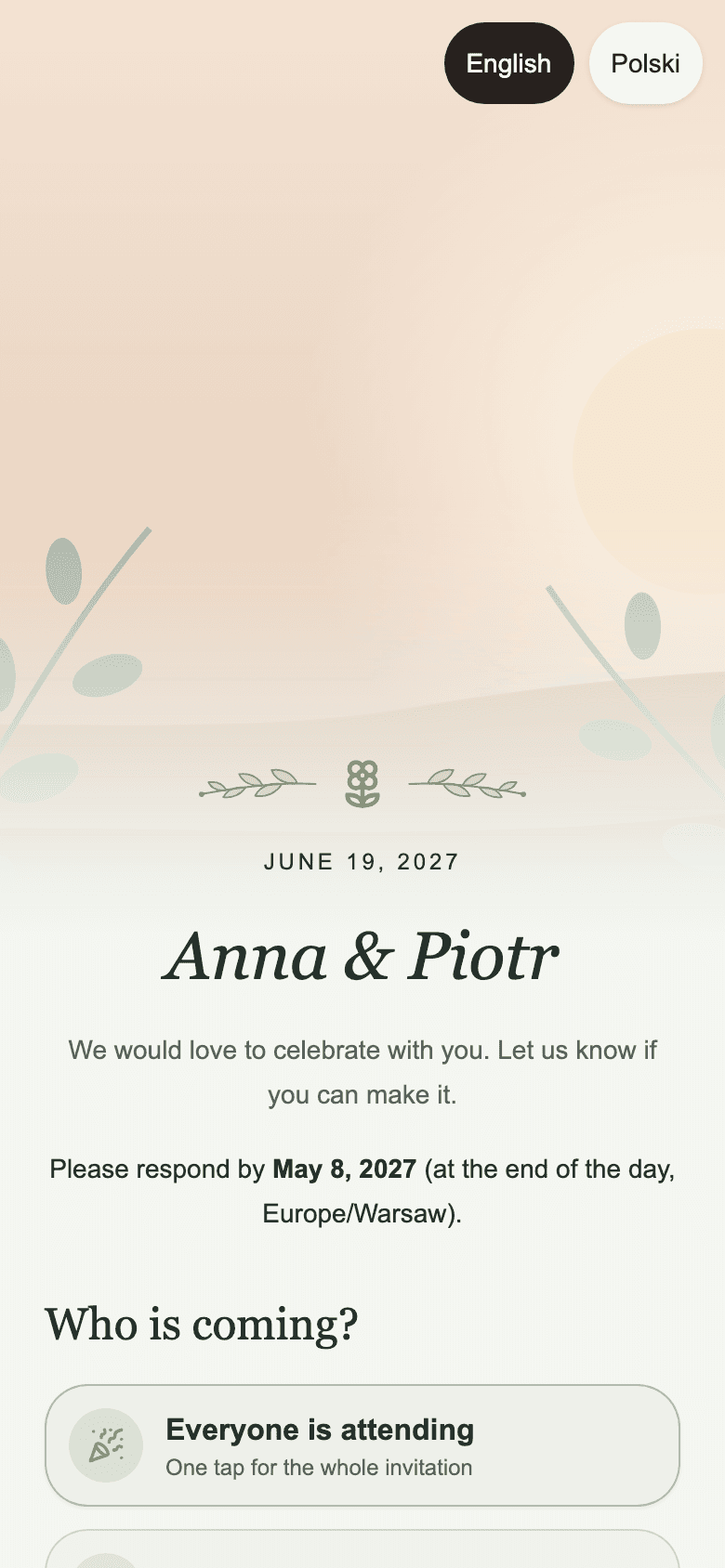
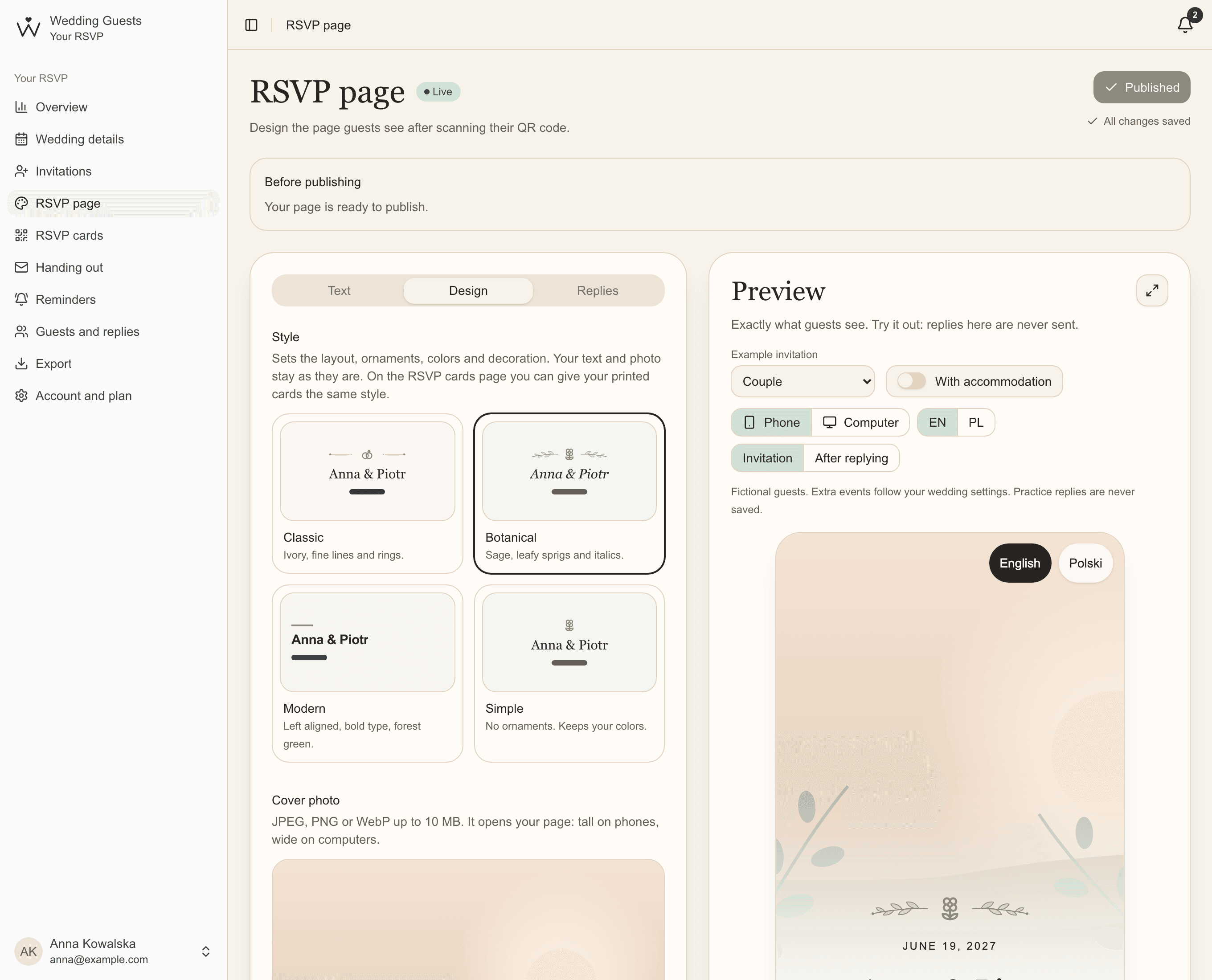
On the RSVP page you design what guests see when they scan their code. Choose one of four styles, add a photo and write your welcome in English, Polish or both. Under Replies, set your reply-by date.
The preview beside it shows the page on a phone and a computer. When it all looks right, click Publish.
QR codes and handing out invitations
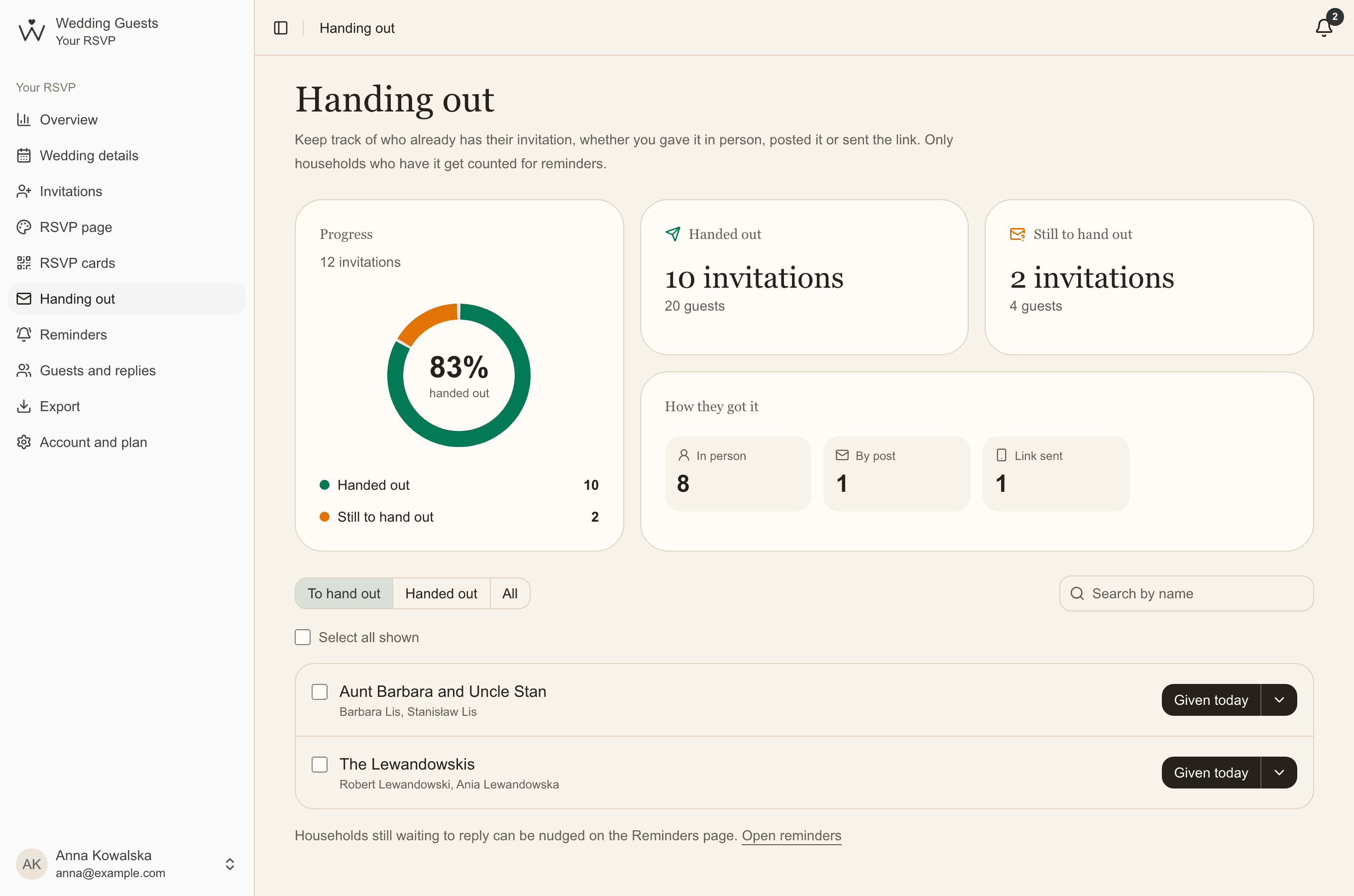
Each code opens one invitation. Download it from the invitation's details, print RSVP cards for every invitation, or download a pack of codes for your own design in Canva or InDesign.
As you hand out invitations, mark them on the Handing out page. Reminders then only cover guests who already have theirs.
Replies and the overview
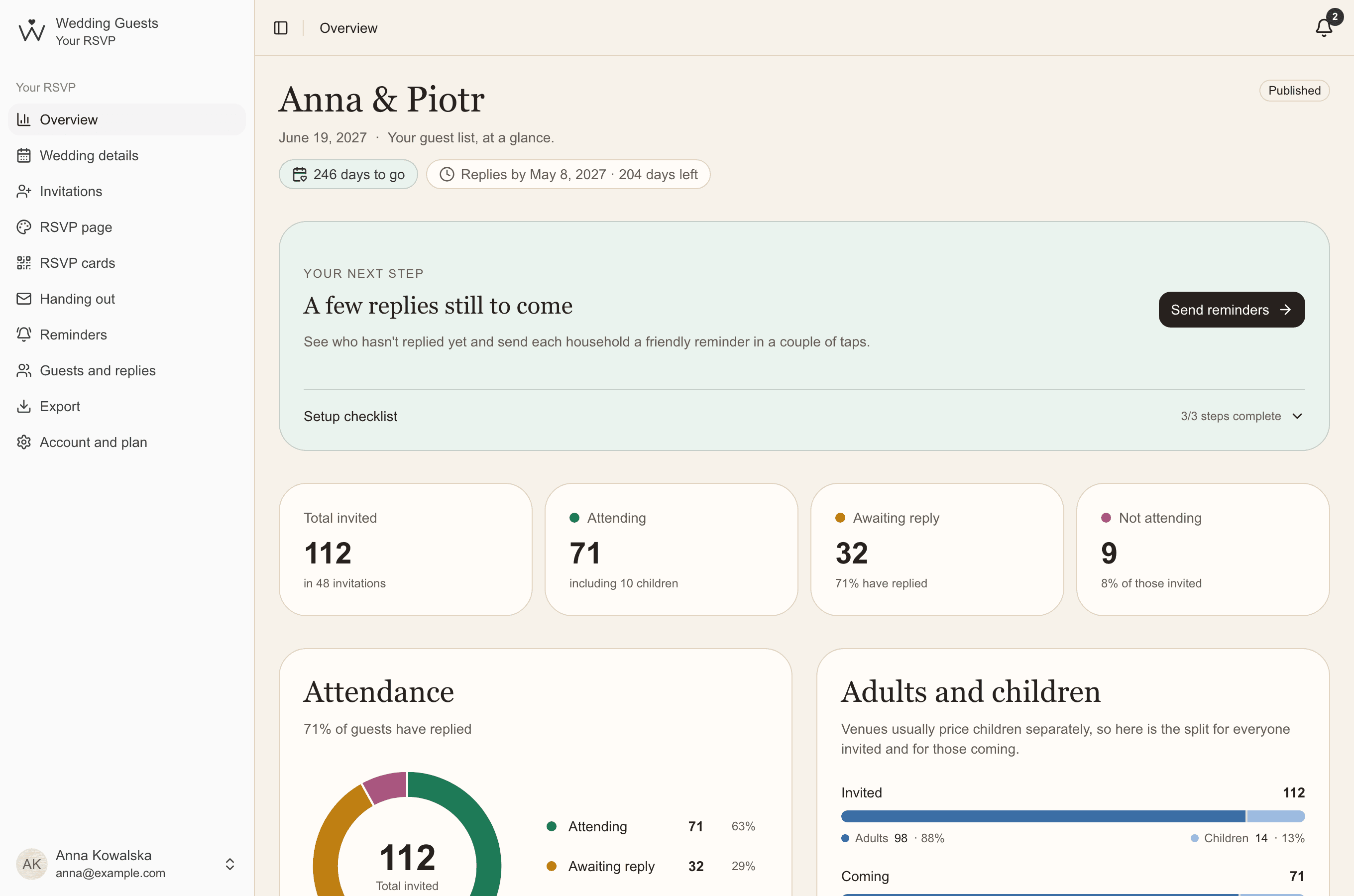
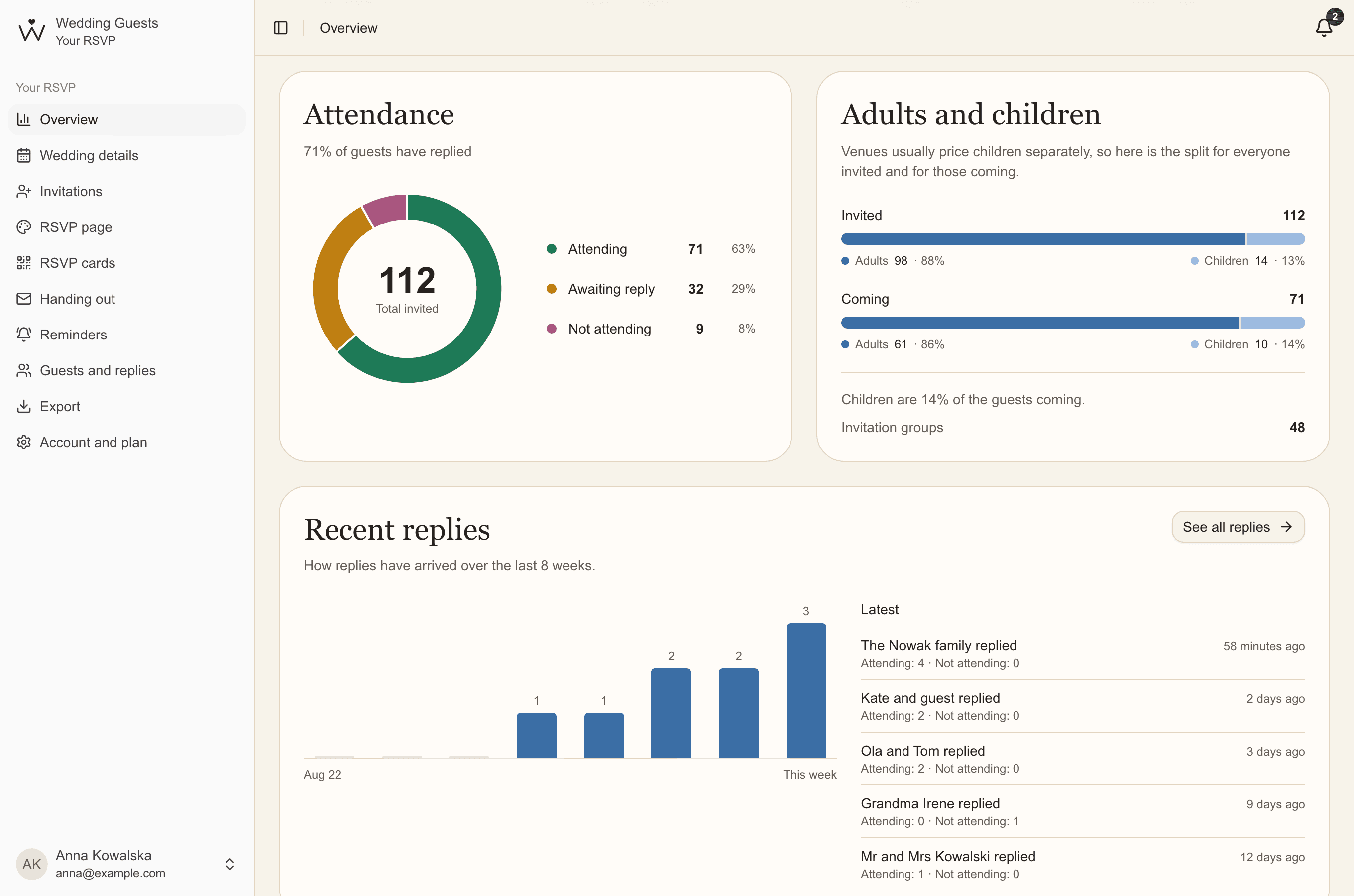
The overview is your home page. It shows the days left until the wedding and the reply-by date, your next step, attendance, adults and children, diets, accommodation, transport and every extra event.
When a guest replies, you get an email and a notice in your dashboard. Someone answered by phone? Open their invitation, click Edit guest details and record the reply for them.
Plan it together
Under Account and plan, invite your partner by email. You each sign in with your own account and see the same list, replies and reminders, and every reminder shows who sent it.
Your guests' privacy
Guests see only their own invitation. Nobody can browse your list, and allergy notes are seen only by you. The app never writes to your guests on its own: you send every message yourselves, from your own phone or email.
Common questions
- Do guests need an account or an app?
- No. Guests scan the code with their phone's camera or open the link and reply straight away. No account, no app.
- Can we start for free?
- Yes. The free plan includes every reply feature and needs no payment card. Exports and printable cards come with Essential and Premium.
- Can we correct a guest's reply?
- Yes. In the invitation's details, click Edit guest details. You can also reopen the invitation so the guest can answer again.